
Scan Control Widget#
The ScanControl widget provides a graphical user interface (GUI) to manage various scan operations in a BEC environment. It is designed to interact with the BEC server, enabling users to start and stop scans. The widget automatically creates the necessary input form based on the scan’s signature and gui_config, making it highly adaptable to different scanning processes.
Key Features:
Automatic Interface Generation: Automatically generates a control interface based on scan signatures and
gui_config.Dynamic Argument Bundling: Supports the dynamic addition and removal of argument bundles such as positioner controls.
Visual Parameter Grouping: Provides a visual representation of scan parameters, grouped by their functionality.
Integrated Scan Controls: Includes start and stop controls for managing scan execution.
Persistent Scan Parameters: Remembers scan parameters when switching between scans. If you configure scan 1 and switch to scan 2, scan 2 will inherit the same parameters if it has never been selected before.
Toggle to Reload Parameters from Last Executed Scan: Includes a toggle to load scan parameters from the last executed scan from the BEC server, ensuring the user can quickly revert to previous configurations.
Note
By default, this widget supports scans that are derived from the following base classes and have a defined gui_config:
Hint
The full procedure how to design gui_config for your custom scan class is described in the Scan GUI Configuration tutorial.
BEC Designer Customization
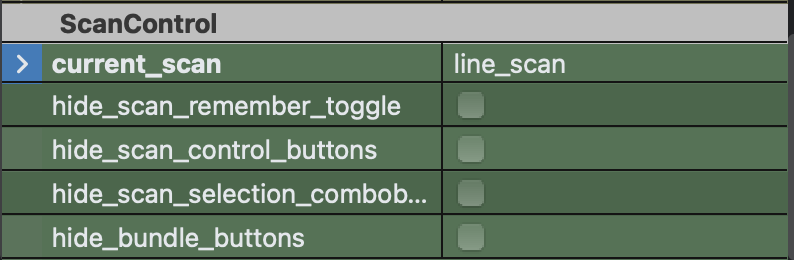
Within the BEC Designer’s property editor, the ScanControl widget can be customized to suit your application’s requirements. The widget provides the following customization options:
Hide Scan Control: Allows you to hide the scan control buttons from the widget interface. This is useful when you want to place the control buttons in a different location.
Hide Scan Selection: Allows you to hide the scan selection combobox from the widget interface. This is useful when you want to restrict the user to a specific scan type or implement a custom scan selection mechanism.
Hide Scan Remember Toggle: Allows you to hide the toggle button that reloads scan parameters from the last executed scan. This is useful if you want to disable or restrict this functionality in specific scenarios.
Hide Bundle Buttons: Allows you to hide the buttons that add or remove argument bundles from the widget interface. This is useful when you want to restrict the user from adding additional motor bundles to the scan by accident.
BEC Designer properties:
Example of usage:
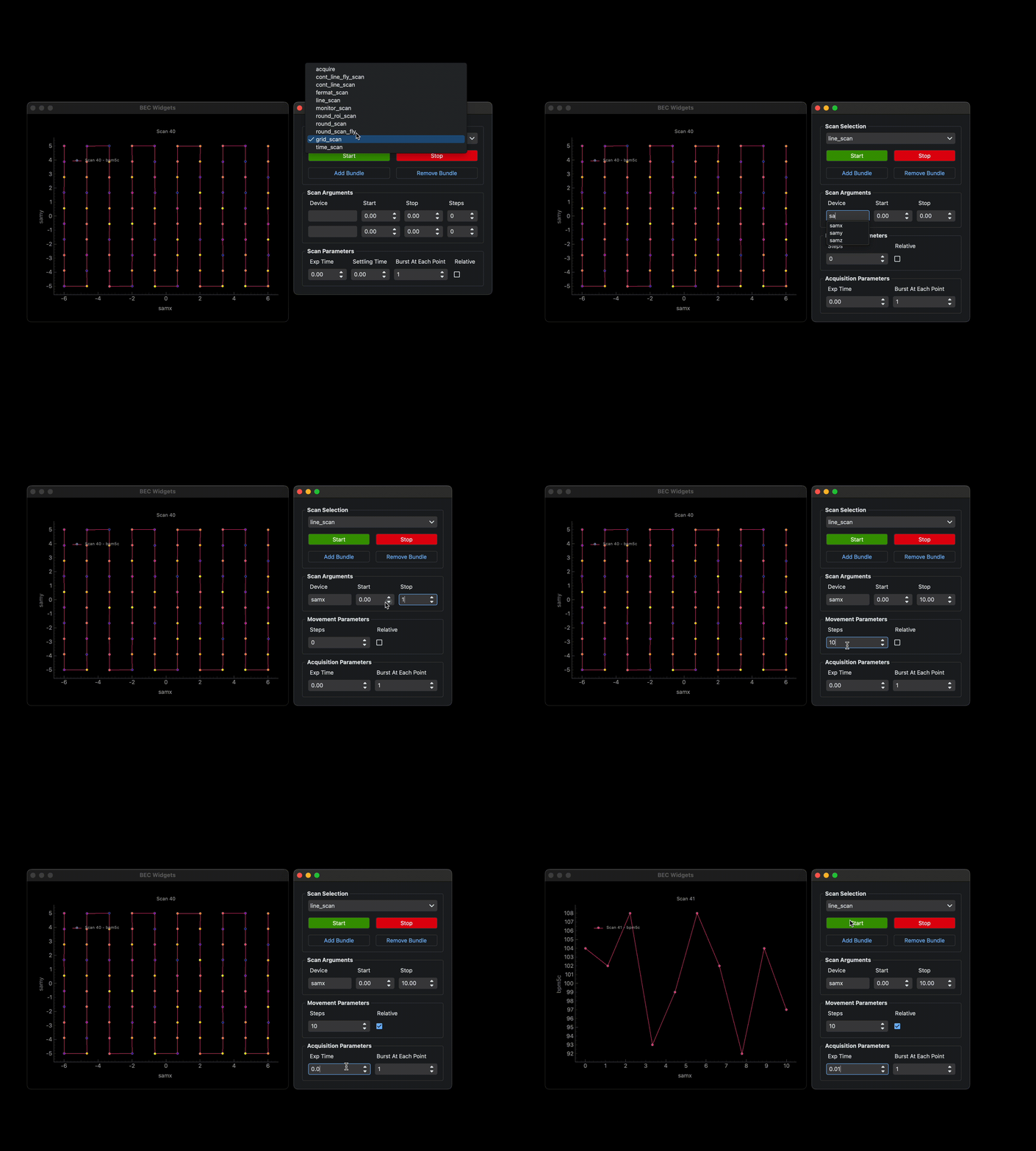
The ScanControl widget can be integrated within a BECDockArea or used as an individual component in your application through BEC Designer. Below are examples demonstrating how to create and use the ScanControl widget.
Example 1 - Adding Scan Control Widget to BECDockArea
In this example, we demonstrate how to add a ScanControl widget to a BECDockArea, enabling the user to control scan operations directly from the GUI.
# Add a new dock with a ScanControl widget
dock_area = gui.new()
scan_control = dock_area.new().new(gui.available_widgets.ScanControl)
- class ScanControl(gui_id: str | None = None, config: dict | None = None, object_name: str | None = None, parent=None, **kwargs)[source]#
Bases:
RPCBaseWidget to submit new scans to the queue.