Device Input Widgets#
The Device Input Widgets consist of two primary widgets: DeviceLineEdit and DeviceComboBox. Both widgets are designed to facilitate the selection of devices within the BEC environment, allowing users to filter, search, and select devices dynamically. These widgets are highly customizable and can be integrated into a GUI either through direct code instantiation or by using BEC Designer.
DeviceLineEdit
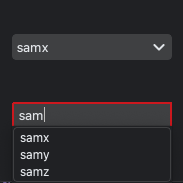
The DeviceLineEdit widget provides a line edit interface with autocomplete functionality for device names, making it easier for users to quickly search and select devices.
DeviceComboBox
The DeviceComboBox widget offers a dropdown interface for device selection, providing a more visual way to browse through available devices.
Key Features:
Device Filtering: Both widgets allow users to filter devices by device type and readout priority, ensuring that only relevant devices are shown.
Default Device Setting: Users can set a default device to be pre-selected when the widget is initialized.
Set Device Selection: Both widgets allow users to set the available devices to be displayed independent of the applied filters.
Real-Time Autocomplete (LineEdit): The
DeviceLineEditwidget supports real-time autocomplete, helping users find devices faster.Real-Time Input Validation (LineEdit): User input is validated in real-time with a red border around the
DeviceLineEditindicating an invalid input.Dropdown Selection (ComboBox): The
DeviceComboBoxwidget displays devices in a dropdown list, making selection straightforward.BEC Designer Integration: Both widgets can be added as custom widgets in
BEC Designeror instantiated directly in code.
Screenshot
Both DeviceLineEdit and DeviceComboBox can be integrated within a GUI application through direct code instantiation or by using BEC Designer. Below are examples demonstrating how to create and use these widgets.
Example 1 - Creating a DeviceLineEdit in Code
In this example, we demonstrate how to create a DeviceLineEdit widget in code and customize its behavior.
We filter down to Positioners with readout_priority Baseline.
Note, if we do not specify a device_filter or readout_filter, all enabled devices will be included.
from qtpy.QtWidgets import QApplication, QVBoxLayout, QWidget
from bec_widgets.widgets.device_line_edit.device_line_edit import DeviceLineEdit
from bec_lib.device import ReadoutPriority
from bec_widgets.widgets.base_classes.device_input_base import BECDeviceFilter

class MyGui(QWidget):
    def __init__(self, parent=None):
        super().__init__(parent=parent)
        self.setLayout(QVBoxLayout(self))  # Initialize the layout for the widget

        # Create and add the DeviceLineEdit to the layout
        self.device_line_edit = DeviceLineEdit(parent=self, device_filter=BECDeviceFilter.POSITIONER, readout_priority_filter=ReadoutPriority.BASELINE)
        self.layout().addWidget(self.device_line_edit)

# Example of how this custom GUI might be used:
app = QApplication([])
my_gui = MyGui()
my_gui.show()
app.exec_()
Example 2 - Creating a DeviceComboBox in Code
Similarly, here is an example of creating a DeviceComboBox widget in code and customizing its behavior.
from qtpy.QtWidgets import QApplication, QVBoxLayout, QWidget
from bec_widgets.widgets.device_combobox.device_combobox import DeviceComboBox
from bec_lib.device import ReadoutPriority
from bec_widgets.widgets.base_classes.device_input_base import BECDeviceFilter

class MyGui(QWidget):
    def __init__(self, parent=None):
        super().__init__(parent=parent)
        self.setLayout(QVBoxLayout(self))  # Initialize the layout for the widget

        # Create and add the DeviceComboBox to the layout
        self.device_combobox = DeviceComboBox(parent=self, device_filter=BECDeviceFilter.POSITIONER, readout_priority_filter=ReadoutPriority.BASELINE)
        self.layout().addWidget(self.device_combobox)

# Example of how this custom GUI might be used:
app = QApplication([])
my_gui = MyGui()
my_gui.show()
app.exec_()
Example 3 - Setting Default Device
Both DeviceLineEdit and DeviceComboBox allow you to set a default device that will be selected when the widget is initialized.
# Set default device for DeviceLineEdit
self.device_line_edit.set_device("motor1")

# Set default device for DeviceComboBox
self.device_combo_box.set_device("motor2")

# Set the available devices to be displayed independent of the applied filters
self.device_combo_box.set_available_devices(["motor1", "motor2", "motor3"])
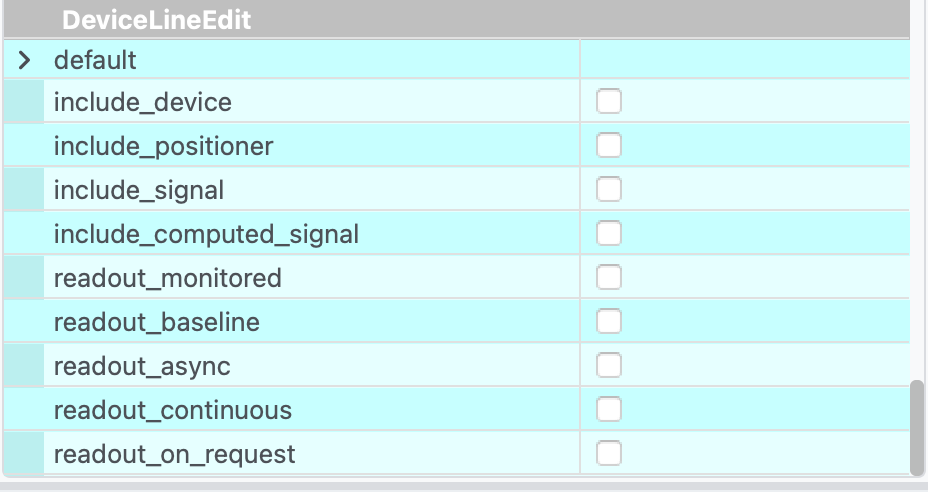
Both widgets are also available as plugins for the BEC Designer. We have included Qt properties for both widgets, allowing customization of filtering and default device settings directly from the designer. In addition to the common signals and slots for DeviceLineEdit and DeviceComboBox, the following slots are available:
set_device(str)to set the default deviceupdate_devices()to refresh the devices list
The following Qt properties are also included: